MiniMax product-video resources
Prepare a product first frame, choose restrained motion and evaluate shape, reflections and typography in MaxMini Video.
Last updated: 2026-10-19
Prepare a MiniMax product shot
Start with a readable product photograph. For a MiniMax shot in MaxMini, the cap, body, base and reflections should be clear before anything moves. Leave space around the silhouette, use a simple background and choose a landscape or vertical composition for the final placement.
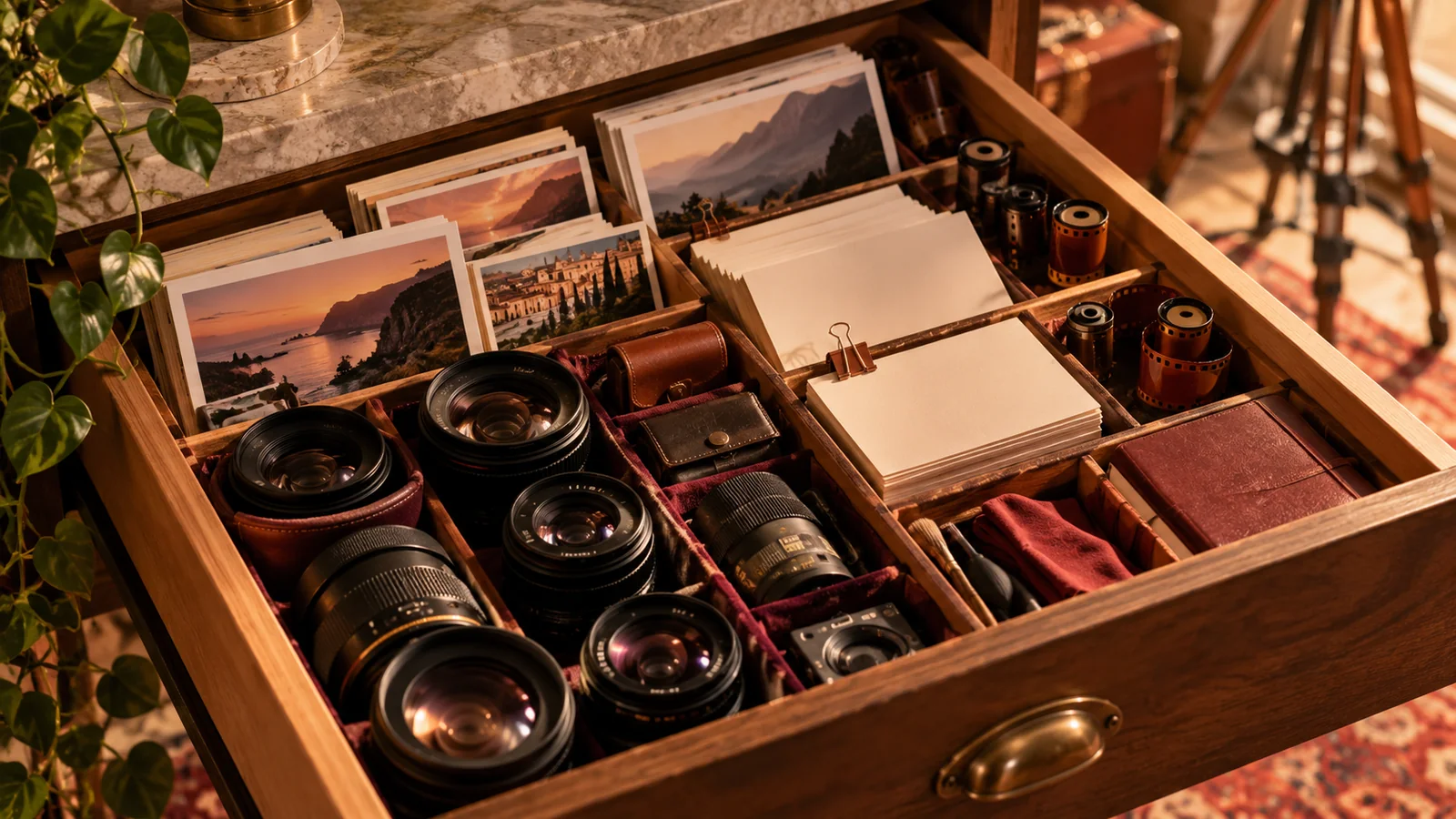
Read MiniMax image to video for a glass-product brief, a proposed motion prompt and a product-consistency checklist. The illustration is a concept image, not an actual video output or evidence of a particular model result.
Pick which element moves
A product, a camera and a light do not all need to move in the first attempt. A fixed product with a very slow lateral camera move is a different brief from a rotating bottle or a traveling highlight. Start with one clear motion, then decide whether a second change improves the shot.
| Product task | Planning choice | What to inspect |
|---|---|---|
| Show the silhouette | Simple source with space around the object | Cap, base and edges remain plausible |
| Show material | Restrained light across the surface | Highlights do not become new objects |
| Show context | A separate, wider composition | The product remains readable |
| Show a label | Consider accurate graphics or a conventional close-up | No invented ingredients or claims |
If exact typography or geometry is essential, consider manual animation or a product shoot before making more model attempts. Generated lettering may change even when the first frame is correct.
Keep the source and quote together
Use an image you own or have permission to process. Check that the intended file is attached and that the selected MiniMax option accepts that input. Available models and reference limits can change; do not assume the capabilities of another model apply to this one.
In the MaxMini studio, select the output settings and review the exact credit quote before submitting. Compare credit options only after that step. Keep a small budget for checking product shape and revising the motion. A longer or higher-resolution clip can require a different quote and does not automatically preserve more detail.
Evaluate first, middle and last frames
Save the source, prompt, model label and settings beside each downloaded clip. Check color, outline, reflections and movement throughout the result. A good thumbnail can hide a distorted ending. Compare attempts at the same size and change only one variable at a time.
Once a restrained shot suits your material, write a small shot list: one material detail, one silhouette reveal and one context shot. Keep them as separate attempts. The video gallery offers visual ideas, not a promise that a result can be recreated exactly.
Resolve delivery and balance issues
Follow an existing queued request before starting another copy. For a failed job, inspect the unused credit reservation and balance history. A failed-generation correction differs from a payment refund; review the refund policy for that process.
Contact Support with the affected job identifier if a file or balance is missing. Do not send passwords, card details or confidential product information that is unnecessary for the investigation. Review the privacy notice and acceptable-use policy before submitting material. MaxMini is independent and is not affiliated with MiniMax.