
MiniMax image to video: plan a product shot
Prepare a clean first frame, write a restrained product motion prompt, review the credit quote and check shape consistency in MaxMini Video.
Last updated: 2026-10-19

A useful product video begins with a readable product photo and one controlled motion. In MaxMini Video, select an available MiniMax model that accepts image input, attach the first frame, describe the movement and review the quoted credits before submitting. Use the controls shown for the selected model; input limits and available output settings can change.
MaxMini Video is an independent service and is not MiniMax’s official website. This walkthrough is about the MaxMini workflow. It does not claim a verified output, a fixed generation time or a guaranteed likeness match.
Prepare a first frame that leaves room for motion
Choose one product against a simple background. Keep its full silhouette visible and avoid putting important packaging details against the edge. A tight crop gives a moving camera little room to reveal new space. Use a source you own or are authorized to process.
Before uploading, inspect the image at normal viewing size:
- Is the shape clear, including the cap, base and any handles?
- Are reflections readable rather than blown out?
- Is the product separated from the background?
- Does the framing fit the intended landscape or vertical output?
- Is there sensitive information, a real person or an unlicensed mark that should not be submitted?
For printed claims, ingredients or small label typography, plan a separate factual close-up or graphic in your edit. A video model may alter lettering even when the first frame looks correct.
Plan one movement for a glass product
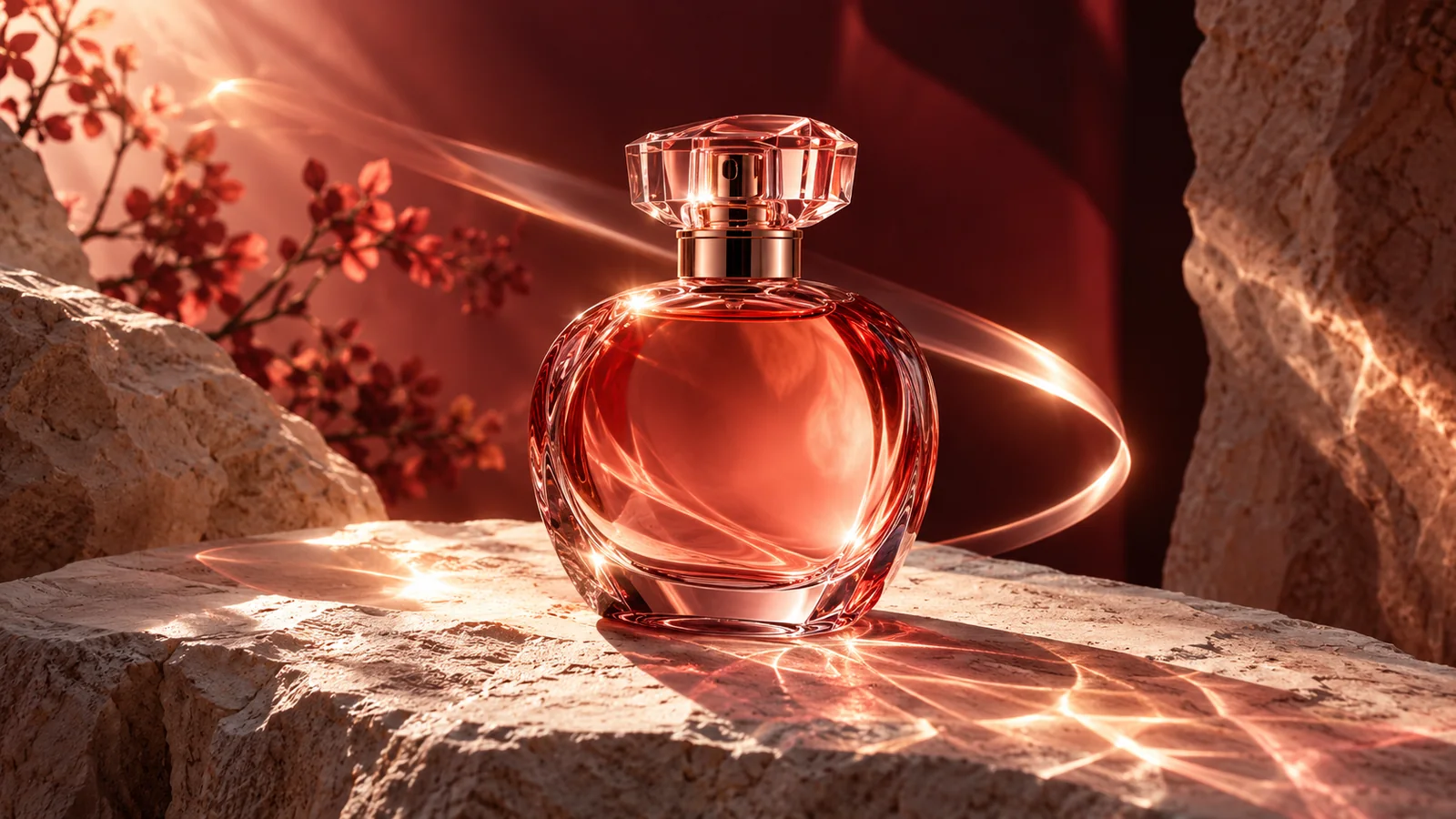
The main image above is an original AI-generated editorial concept: a coral glass bottle on stone with refracted light. It can help you think about materials and composition, but it is not a MiniMax output or evidence of a successful animation.
Here is a proposed image-to-video prompt for a source with a similar composition:
A single continuous product shot. Keep the bottle centered and its glass silhouette stable. Make a very slow lateral camera move while a soft warm highlight travels across the surface. The stone base stays still. Restrained reflections, realistic material detail, no cuts and no newly added lettering.
This prompt separates three decisions: what remains fixed, what the camera does and what the light does. For a first attempt, simplify further if necessary: keep the camera still and ask only for a subtle light change. “Make an exciting commercial” leaves the motion and product preservation requirements unspecified.
Set up the attempt in MaxMini
- Open the studio, choose the currently available MiniMax option and confirm it accepts a first-frame image. Do not assume an option available on a different model exists here.
- Upload your product image and check that the intended file is attached. Write the motion prompt after reviewing the source composition.
- Choose the available output format and duration for your placement. Keep the initial shot short enough to evaluate clearly; longer does not automatically mean more faithful.
- Review the exact credit quote. Use MaxMini pricing to compare available credit options after checking the quote. Resolution, duration, references and model selection can affect the cost.
- Submit once and follow the existing job. If it is queued, check its status before starting another copy. Save the model label, prompt and settings for comparison.
No paid video generation was performed for this guide. The example is a reproducible brief to try with your own authorized source, not a promise that a provider will produce an exact result.
Inspect the result like a product shot
Compare the first frame, middle and ending. Do not judge the result from a thumbnail alone.
| Check | Look for | A focused next attempt |
|---|---|---|
| Shape | Cap, body, base and outline stay plausible | Reduce motion or use a cleaner first frame |
| Identity | Color and recognizable details remain usable | Keep the camera still and change only light |
| Camera | Movement is smooth and follows the requested direction | Request one slow move without an orbit or cut |
| Reflections | Highlights move without becoming new objects | Simplify the lighting description |
| Text | Labels do not invent product claims | Avoid relying on generated small text; add accurate graphics in editing |
Change one variable each time and compare both clips at the same size. If the task requires exact typography or strict product identity, decide whether a conventional product shoot or manual animation is a better fit before spending more credits.
Failed jobs and finished files
Check the job’s actual status. A definitively failed job should release unused reserved credits; a completed result you dislike is not the same event. The refund policy explains payment refunds. For a balance or delivery mismatch, contact support with the job identifier and a concise description, without passwords or payment credentials.
Download approved files you want to retain and inspect the actual resolution, framing, motion and sound where applicable. Review rights and advertising claims before using a result commercially. A generated clip does not establish that a product performs as shown.
Build a small shot list
Once the simple move works for your material, plan a second shot with a different purpose: a static material detail, a slow reveal of the silhouette or a separate context view. Keep those as separate attempts rather than packing them into one request. Use the video gallery for visual ideas and the creation resources for the account, reference and credit workflow.